Study Aids
Karaoke highlighting
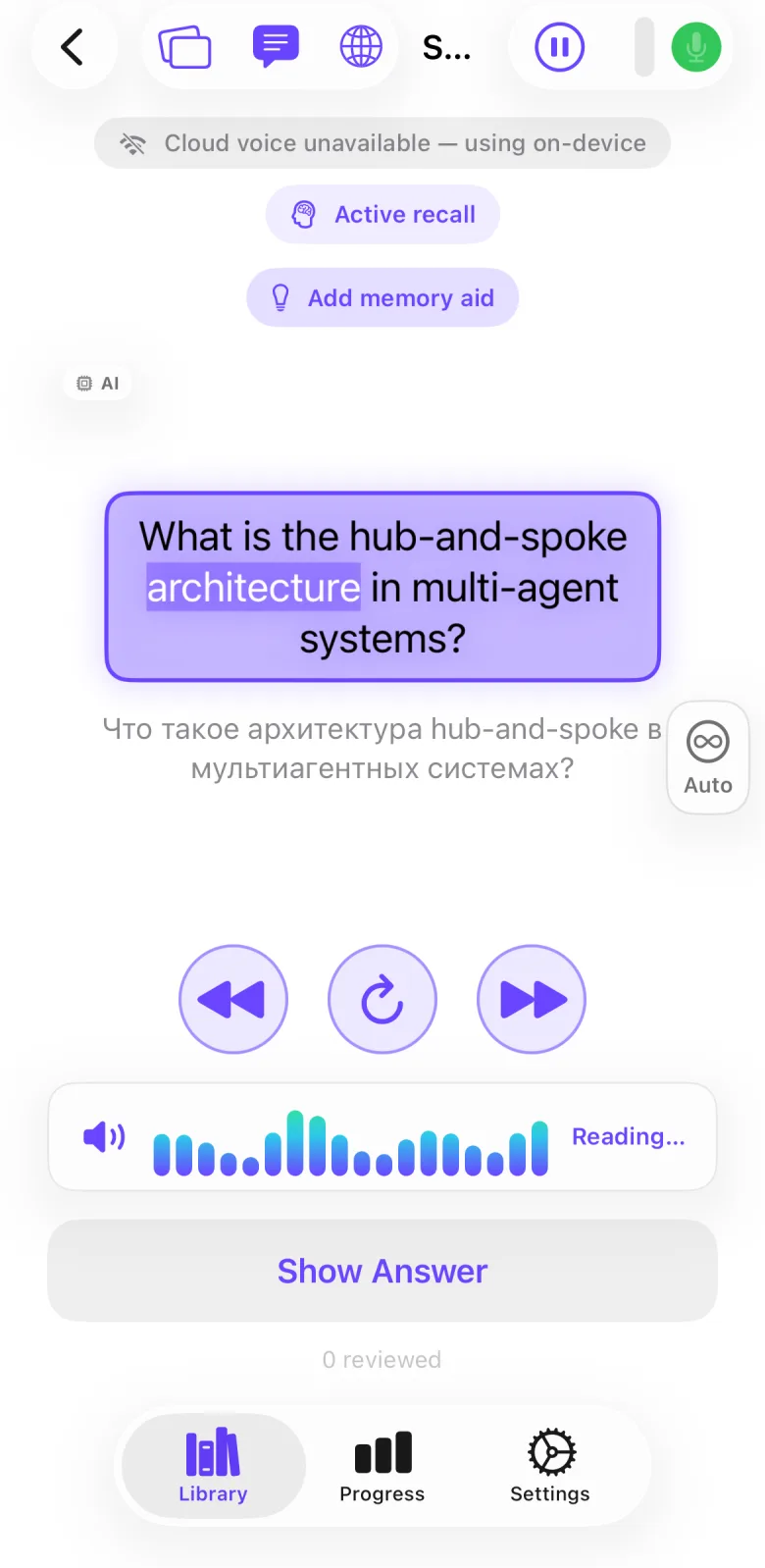
The classic audio session highlights the block being read aloud and, where timing is available, the word being spoken.
What it does
In the classic audio session the app marks what it is reading. The block being spoken, whether the question, the answer or a translation, gets a coloured panel with a border. When timing is available, the word being spoken is also marked with a coloured background, like a karaoke line. Word timing comes from the cloud voice when our server answers, and from the iPhone’s own voice when it does not. There is no switch to turn the highlight off.
How to use it
- Open the Library tab and tap a pack.
- Tap Start Session, or Review N Due Cards when cards are due. Do not choose Visual Review, because it does not read cards aloud.
- On the Ready to practice? screen, keep Original, Translation or both switched on. Only the blocks that are read are highlighted.
- Tap Start Session and listen. The block being read gets a panel in the app’s accent colour, slightly enlarged.
- Follow the words. Where timing is available, the word being spoken has a coloured background and white text.
- Tap any block to hear the card again from that block onward.
- Under the card, tap Previous block, Re-read card or Next block. The highlight moves to the block being read.
- Tap the pause button at the top right to freeze the voice in the middle of a block. When you resume, the voice continues from the same point.
Settings that affect it
- No setting turns the highlight on or off. It is always active in the classic audio session.
- Original and Translation on the Ready to practice? screen choose which blocks are read, and so which can be highlighted. Both are on by default, and at least one stays on.
- Settings → Voice → Learning speech rate and Translation speech rate set the reading speed for the original and the translation. Defaults 0.8× and 1.2×. The speed applies to the cloud voice and to the iPhone voice alike.
- Settings → Session → Translation Delay is the gap before a translation block starts. Default 1.5 seconds.
- Cloud voices have no switch of their own. See the cloud voices manual.
Limits and honest caveats
- Classic audio session only. Visual Review reads nothing aloud, so nothing is highlighted. The Focus session does not highlight words, and the app’s code lists word-level highlighting there as a later step.
- The block panel is always shown for the block being read. The word highlight appears only when the app has timing for the voice.
- Before the iPhone voice is tried, each block is sent to our server to get a voice with word timing, whenever the server answers its availability check. The app checks at most about every 20 seconds. This is the premium voices transfer described in the AI disclosure: the card text goes to our server and a third-party provider. For word timing the app’s code names one provider, ElevenLabs.
- The request carries your account token when you are signed in. Without a token the server refuses it, according to a comment in the app’s code, and the app uses the iPhone’s voice.
- If the cloud request fails, the notice Cloud voice unavailable — using on-device can appear. When you are signed in, the app also sends our server a short error report: app version, iOS version, device model, the error text and the time.
- The iPhone path asks iOS for the standard voice of the card’s language. The specific voice you picked in Settings → Voice is not used on this path. The iPhone path does not use our server.
- A card side with a formula is shown typeset and gets the block panel only, with no word highlight. A translation with a quoted phrase in the pack’s original language can be read in several pieces, and then only the block panel is used.
FAQ
Can I turn the highlight off?
No. The app has no setting for it. You can switch off Translation or Original on the start screen so that fewer blocks are read and highlighted.
Why do I see the panel but no highlighted word?
The block panel always shows, but a word needs timing. Formula sides and blocks read in several pieces get the panel only. Visual Review and the Focus session have no word highlight at all.
Does highlighting send my cards to a server?
Yes, when our server answers its availability check. The text of each block is sent to our server and a third-party voice provider to get a voice with word timing. If the server does not answer or refuses the request, the app uses the voice on your iPhone, which does not use our server.
Which voice do I hear while the words are highlighted?
Either the cloud voice from our server, or the iPhone’s standard voice for the card’s language. Which one you get depends on whether the cloud request succeeds.
Can I hear one block again?
Yes. Tap the block, and the card is read again from that block onward.