Account & Subscription
Account and sign-in
Sign in with Apple to load course packs and use cloud voices and Live Voice Tutor. Bundled and personal packs work without an account.
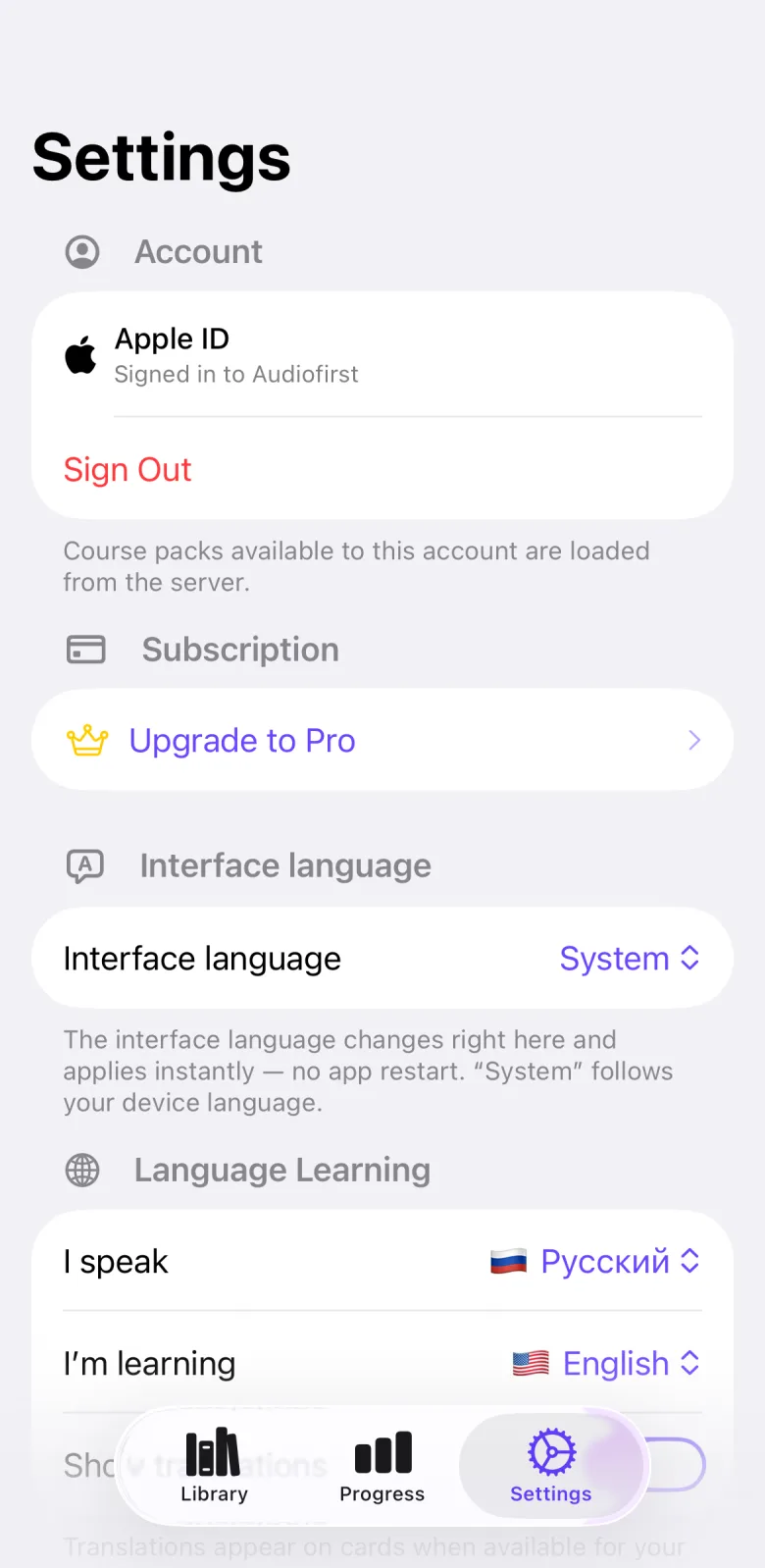
What it does
The Account section at the top of Settings signs you in to Audiofirst. Signing in loads the course packs that your account can use. It is also needed for cloud voices and Live Voice Tutor. Without an account, bundled packs and your own packs still work. Sign in with Apple is the only way to create an account.
How to use it
- Open the Settings tab and find the Account section.
- Tap Sign in with Apple.
- Confirm in the Apple sheet that opens.
- Wait until the row shows Signed in to Audiofirst.
- If our server already holds an email account for you, enter your email in Email instead.
- Enter your password in Password, then tap Sign In.
- To sign out, tap Sign Out.
Settings that affect it
No setting in Audiofirst changes how sign-in works. Signing in or out does refresh the default settings that apply to you. See the caveats.
Limits and honest caveats
- Creating an account. Sign in with Apple is the only way to create an account. The email form only signs in to email accounts that already exist on our server. There is no email sign-up in the app.
- Network. Signing in contacts our server, so it needs a network connection. The request carries an App Attest proof. See data and privacy.
- What is sent. Sign in with Apple sends the Apple identity token and the name you share. The email form sends your email and password.
- Staying signed in. The app keeps the session in the iOS Keychain on this iPhone only, and restores it when you open the app. It stays until you tap Sign Out.
- Your name. If Apple shares no name, the row shows Apple ID instead. For an email account, the row shows the email address.
- Errors. A failed sign-in shows a message under the section. A wrong email or password shows Incorrect email or password. Sign In stays disabled until both fields have text.
- Signing out. The iPhone is signed out at once. The app then asks our server to end the session and clears the stored tokens. If you are offline, the server request can fail without a message. After that, cloud voices fall back to the on-device voice, and Live Voice Tutor needs you to sign in again.
- Downloaded packs stay. Course packs you already downloaded stay on the iPhone after you sign out. See private course packs.
- Defaults. Signing in fetches the default settings that our server resolves for your account. A setting you changed yourself stays as it is. Signing out returns to the defaults bundled in the app.
- Access is separate. Whether your account can use the tutor or cloud voices is decided on our server. See subscription.
- No account deletion. The app has no button to delete your account, and Sign Out does not delete it.
FAQ
Do I need an account to study?
No. The text under Account says bundled and personal packs remain available without an account.
Can I sign up with an email address?
No. Sign in with Apple is the only way to create an account. The email form works only for accounts that already exist on our server.
What happens to my downloaded course packs when I sign out?
They stay on your iPhone. Signing out does not remove them.
Why does the row say Apple ID instead of my name?
Apple did not share your name with the app, so the row shows Apple ID.
Can I delete my account in the app?
Not in this version. The app has no account deletion button.