Library & PacksBeta
Private course packs
Sign in to load study packs that our server shares with certain accounts. The feature is in beta, and your account may see none.
This feature is in beta. It may be limited to some users or still be tuned; the section on limits says what applies.
What it does
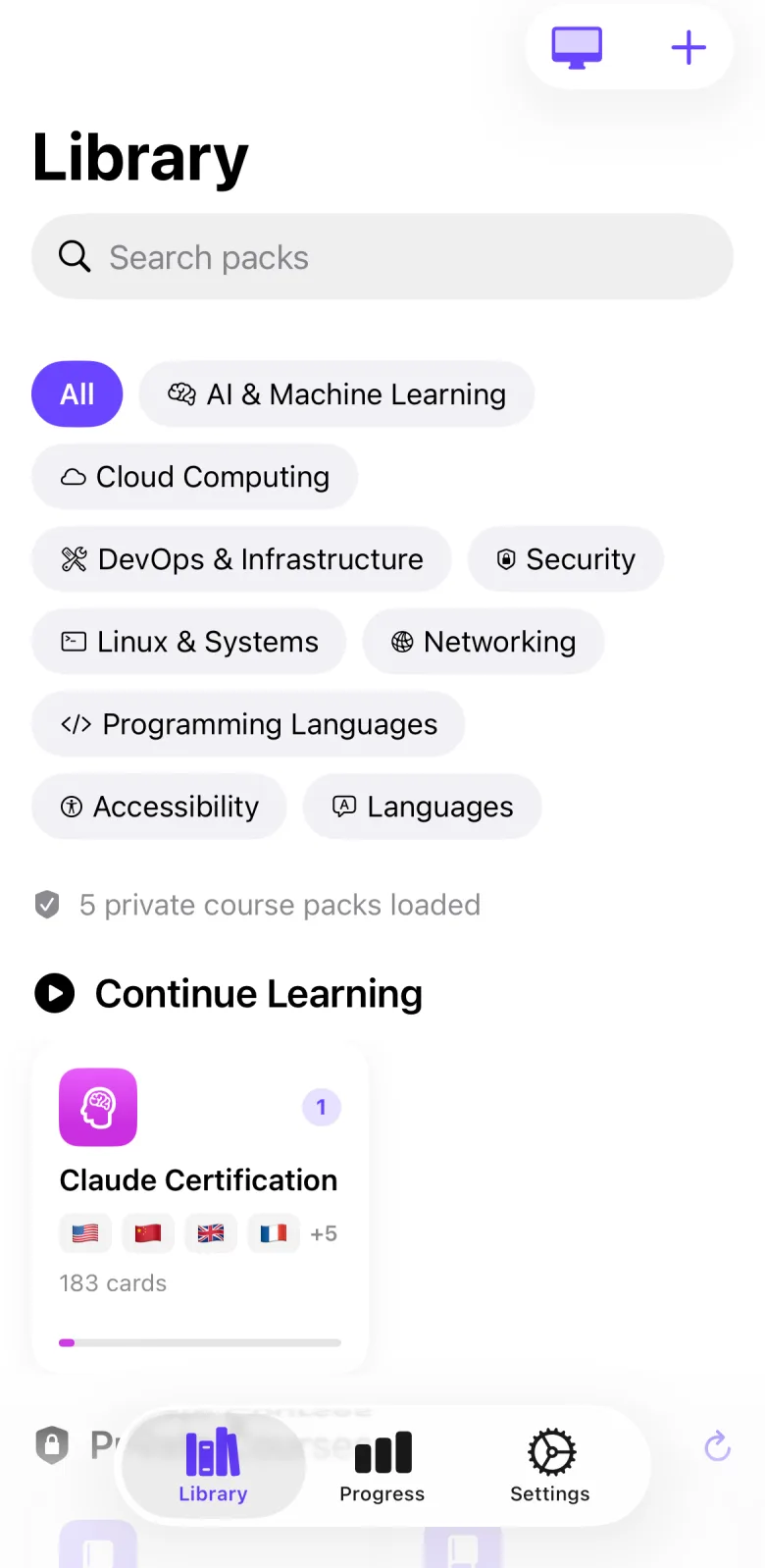
Private course packs are study packs that are not inside the app. Audiofirst downloads them from its server for accounts that were given access. After you sign in, they appear in the Library under Private Courses. Which packs an account sees is decided by rules on our servers, so your account may see none.
How to use it
- Open the Settings tab.
- In the Account section, sign in with Apple, or type your Email and Password and tap Sign In.
- Open the Library tab.
- Wait while the screen shows “Checking course-pack access…”.
- Look for the Private Courses row. A line such as “1 private course pack loaded” confirms that a pack arrived.
- Tap a private pack and start a session as for any pack. See Pack details.
- If loading fails, tap Try Again. You can also tap the reload button on the Private Courses row.
Settings that affect it
- Settings → Account — signing in is the only switch. Default: signed out. Nothing else in Settings changes private course packs.
Limits and honest caveats
- Beta. The seed access rule in the app’s source allows administrators only. The live rules are managed on our servers and can differ, so your account may see no private pack.
- If your account has none, the Library says “No private course packs are available to this account.”
- This manual does not list the packs. Their content is not part of the app download.
- Loading the list, downloading a pack and checking access need a network connection. When you are signed in, the app also asks the server to confirm access each time you start a session in a private pack. If that fails, you see “Access could not be confirmed.”
- Packs you already downloaded stay on your device. A failed refresh does not remove them, and signing out does not delete them. While you are signed out, the access check at session start is skipped for a downloaded private pack.
- The app has no email sign-up. Sign in with Apple creates an account. Email and Password work for an account that already exists.
- Bundled packs and packs you create stay available whether or not you are signed in or online.
FAQ
Why do I not see any private course packs?
Either you are signed out, the list is still loading, or the server returned no packs for your account.
Do I need an account to use the app?
No. Bundled packs and your own packs stay available whether or not you are signed in. You sign in to load private course packs.
Are private packs deleted when I sign out?
No. Signing out keeps the packs that you already downloaded.
Can I sign in with email and a password?
Yes, if an email account already exists for you. You cannot create one in the app.
Do private packs use the same study modes as other packs?
They open on the same pack details page. See Pack details for the start buttons.