Library & Packs
Pack library
Browse the flashcard packs in the Library tab by topic, search them, and sort your own packs into categories.
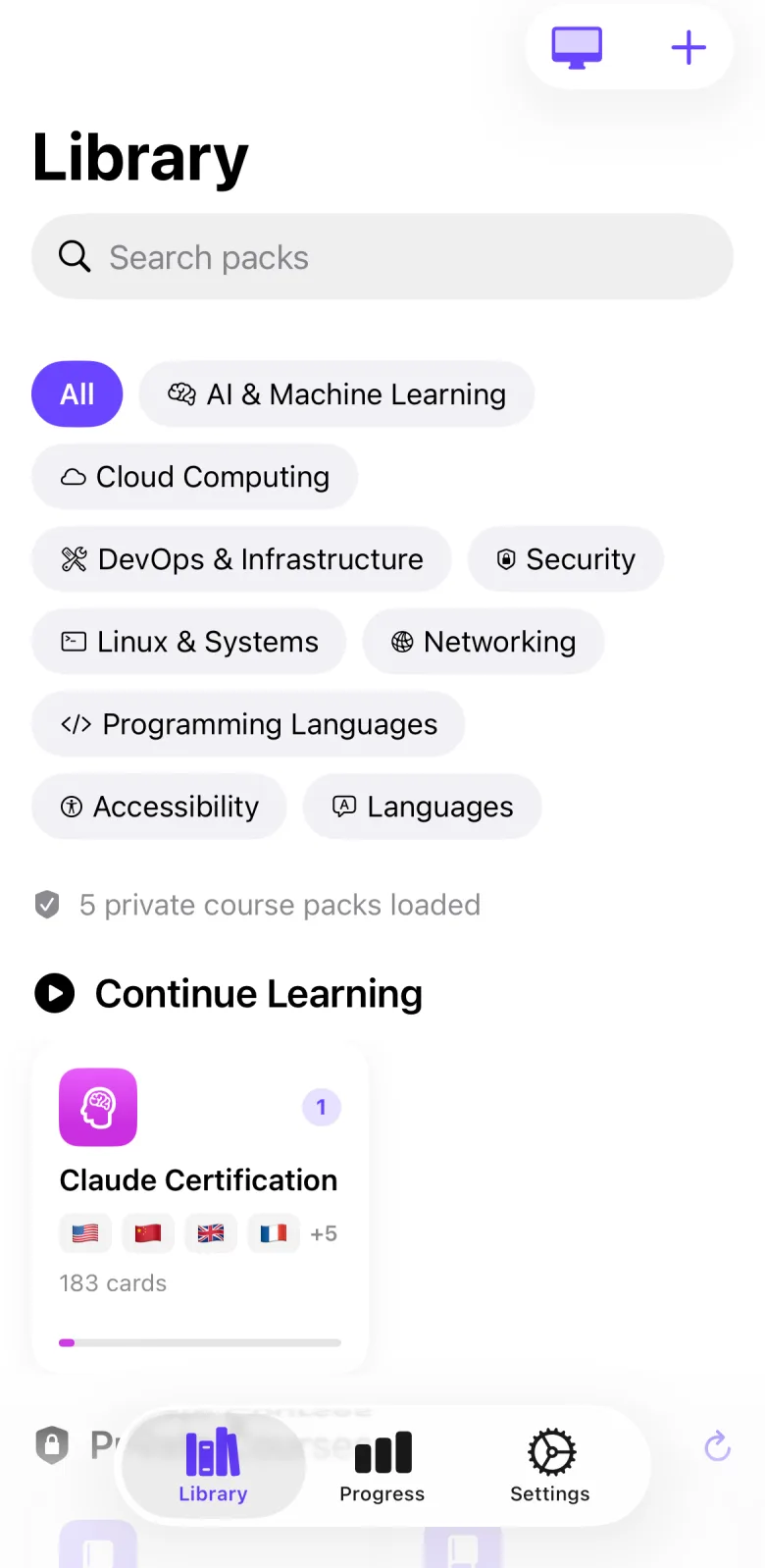
What it does
The Library tab lists the flashcard packs in the app. Packs you have started come first, with the most cards due on top. Below them, packs are grouped by topic, for example Cloud Computing, Security and Languages. You can filter by topic, search packs by title or description, and sort your own packs into categories you create.
How to use it
- Open the Library tab.
- Tap a topic chip under the title, such as Security, to show only that topic. Tap All to clear the filter.
- Type in the Search packs field to find a pack by title or description.
- Tap a pack card to open its details. See Pack details.
- Tap Create, then Create Pack, to make your own pack. See Create your own pack.
- Tap Create, then Categories, to manage categories. Tap Новая категория to add one, tap a category to rename it, or swipe left on it to delete it.
- Press and hold one of your own packs, choose Category, then pick a category. Choose Uncategorise to take the pack out of it.
Settings that affect it
- Settings → Session → Offer import from screenshots — when on, the Library offers to turn a new screenshot into cards. Default: on. See Screenshot import.
Limits and honest caveats
- At the version this page was checked, the bundled pack files hold 25 packs with 2,563 cards in total. 11 are Swedish language packs and 14 are named after a vendor exam or certification. Later versions may differ.
- Audiofirst is not affiliated with, or endorsed by, any exam body or vendor named in a pack title.
- The topic chips are the only built-in filter. The Categories screen also lists By Vendor, By Domain and By Level, with a lock, but they are read-only and do not filter the Library.
- Your categories hold only packs you created. You cannot file a bundled pack in a category.
- The Categories screen is in Russian in every interface language.
- Delete Pack in the press-and-hold menu does not ask for confirmation. Deleting a category does not delete the packs in it.
- Search checks pack titles and descriptions, not the text on cards.
- A pack can appear in more than one row. For example, a pack you started shows under Continue Learning and under its topic.
FAQ
How many packs are in the Library?
At the version this page was checked, the bundled pack files hold 25 packs. Packs you create are added to them. Private course packs appear only for accounts that have access.
Can I browse packs by exam vendor?
Not with a filter. You can search for the vendor name, which matches pack titles and descriptions. The vendor grouping on the Categories screen is read-only.
Why is the Categories screen in Russian?
Its labels are fixed text in the app and are not translated into the 32 interface languages.
Why does one pack appear twice?
A pack you have started shows under Continue Learning and again under its topic. A few packs belong to two topics.
What is the Start here row?
A suggested pack for the study goal you chose in onboarding. It shows only when that pack is not started and no filter or search is active.